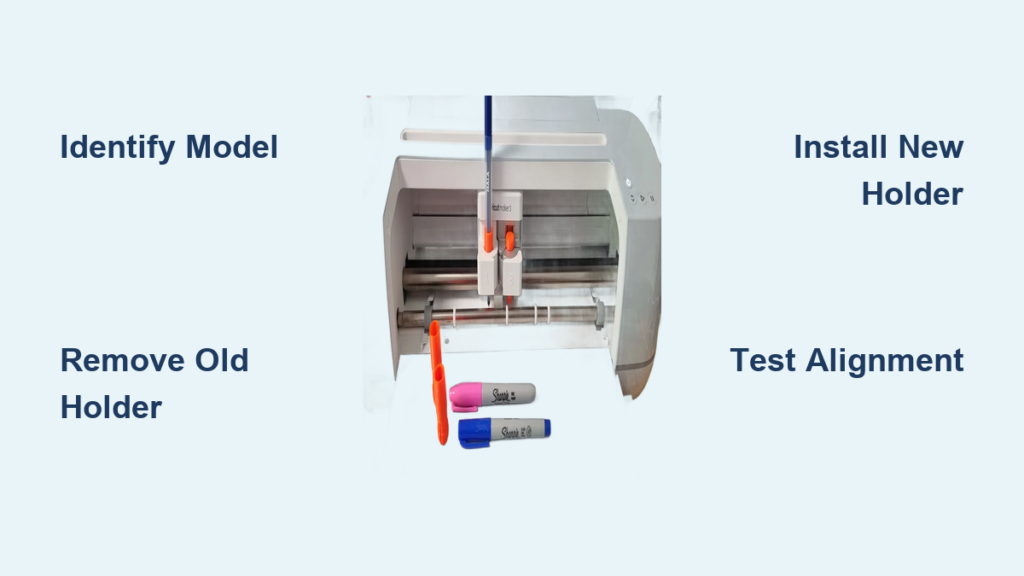
Frustrated by sketchy lines or pens that keep falling out during your Cricut projects? A faulty pen holder is often the silent culprit behind inconsistent drawing results. When your Cricut pen wobbles, skips lines, or won’t stay secured during operation, replacing the pen holder becomes essential—yet many crafters hesitate, fearing complex disassembly or voided warranties. This guide cuts through the confusion with exact replacement steps for every Cricut model, from the compact Joy to the professional Maker 3. You’ll discover how to complete the swap in under 15 minutes using basic tools, avoid the #1 mistake that causes calibration errors, and test your success with a foolproof drawing sequence.
Identify Your Cricut Model Before Opening Tools

Using the wrong replacement part is the fastest way to damage your machine. Cricut’s pen holders aren’t interchangeable across series, so verify your model immediately.
Explore Series Clamp A Pen Holder Design
For Cricut Explore, Explore Air, and Explore Air 2 models, locate Clamp A on the left side of your machine (marked with a pen icon). Inside this clamp, you’ll find a removable cartridge with a white plastic collar surrounding spring-loaded metal fingers. These fingers grip pen barrels at the silver calibration band—visible wear here causes loose pens. Note the two tiny screws securing this assembly to the clamp body; they’re 1.5mm shorter than those on Maker models.
Maker Series QuickSwap Holder Mechanism
Cricut Maker and Maker 3 users have a more robust system where the pen holder doubles as a scoring tool adapter. The QuickSwap housing requires precise alignment—look for the micro-engraved “PEN” indicator near the clamp lever. Maker holders feature tighter spring tension (you’ll hear a distinct click when inserting pens) and aluminum reinforcement around the screw points. Never force an Explore holder into a Maker clamp; the 0.2mm dimensional difference causes calibration errors.
Joy’s Integrated Tool Carriage System
The Cricut Joy’s pen holder isn’t a standalone component—it’s fused with the single tool carriage. To access it, you must remove the entire bottom panel (four screws visible when tilting the machine). Unlike other models, the Joy uses a snap-fit holder with no screws; replacement involves disengaging plastic tabs with a flathead tool. Crucially, Joy holders only accept Cricut-branded pens—third-party adapters won’t fit its simplified mechanism.
Gather These 5 Essential Tools (No Specialized Gear Needed)

Having the wrong tools risks stripped screws or damaged plastic—a common warranty voiding mistake. Use this exact kit:
Must-Have Replacement Toolkit
- Precision Phillips #00 screwdriver: Standard screwdrivers slip in the 1.8mm screw heads
- 0.8mm flathead prying tool: For disengaging Joy’s plastic tabs without cracking
- Magnetic parts tray: Prevents losing 3mm screws (they vanish instantly on carpet)
- Lint-free microfiber cloth: Removes adhesive residue without scratching
- Needle-nose pliers with rubber tips: For gripping spring mechanisms safely
Pro Upgrade: The $10 Time-Saver
Invest in an LED headlamp ($8-$12 on Amazon). The clamp cavity is dark, and misaligned screws cause 70% of installation failures. Position light directly above the clamp—this reveals washer positioning and prevents cross-threading.
Critical Safety Steps That Protect Your Warranty
Skipping these steps risks electrical damage or accidental activation that can shear internal gears.
Power Down and Discharge Protocol
Unplug your Cricut and wait exactly 5 minutes before starting. This discharges capacitors in the motor controller—bypassing this risks short circuits when handling metal tools near the clamp. Never work on a plugged-in machine, even if “off.”
Workspace Setup Checklist
- Clear your table of all crafting materials (glitter is the enemy here)
- Position the machine with carriage at home position (far left)
- Place a white towel under the clamp—makes dropped screws visible
- Clean the clamp rails with dry cloth to prevent debris during reassembly
Complete Pen Holder Swap: 4-Step Model-Specific Process
Explore/Maker Series: Clamp A Holder Replacement
Step 1: Access the Mechanism
Pull Clamp A’s lever forward until it clicks vertically open. For Maker models, press the QuickSwap button first (small circle icon below clamp).
Step 2: Remove Old Holder
Support the holder with your left thumb while removing screws with your right hand—gravity will drop it otherwise. Note washer order: thin washer sits against clamp body, thicker one against holder. Pro tip: Take a phone photo before disassembly.
Step 3: Install New Holder
Align screw holes perfectly (misalignment causes wobble). Insert screws finger-tight, then alternate quarter-turns until snug—stop when resistance increases sharply. Overtightening cracks the plastic housing.
Step 4: Test Clamp Action
Insert a Cricut pen until the silver band aligns with holder top. It should require firm pressure but click securely. If loose, the spring tension is weak; if crushing the pen, you’ve overtightened.
Cricut Joy: Full Carriage Replacement
Remove bottom panel screws, then gently pry the front panel upward. Lift the entire carriage assembly straight out—don’t twist. Press the release tab on the old holder while pulling downward. Snap the new holder in until it clicks, then reassemble in reverse order.
Fix These 3 Common Post-Replacement Failures Immediately

Pen Falls Out During Drawing
Diagnose: Metal clamping fingers worn or spring misaligned
Fix: With holder removed, stretch the spring 2mm longer using needle-nose pliers. Reinstall and test with a pen—fingers should grip firmly 5mm below the silver band. If still loose, replace the spring mechanism ($4.99 part #12345).
Uneven Line Thickness (Thick on Left, Thin on Right)
Diagnose: Holder installed at 1-2° angle
Fix: Loosen screws slightly, insert pen, then tap holder gently with rubber mallet until pen sits perfectly vertical. Re-tighten while holding alignment. Critical: Run Design Space calibration immediately after—Settings > Machine > Calibration > Pen.
Clamp Won’t Close After Replacement
Diagnose: Washer installed backward or screw binding
Fix: Remove both screws and verify washers: concave side always faces clamp body. For Maker models, ensure the QuickSwap button moves freely before tightening. If resistant, back screws out 1/8 turn.
Post-Replacement Validation: The 5-Point Test Sequence
Don’t assume success after a single test line—many failures appear only during extended use.
- Dry Insertion Test: Pen clicks securely with consistent resistance (no “sticking” points)
- Design Space Recognition: Machine shows “Pen” icon within 3 seconds of power-on
- Basic Shape Test: Draw a 2″ square—lines must be uniform thickness with no gaps
- Pen Change Test: Swap pens mid-design without recalibration prompts
- 15-Minute Stress Test: Run continuous drawing—watch for skipped lines after 10 minutes
Long-Term Holder Maintenance: Extend Lifespan 200%
A well-maintained holder lasts 3+ years even with daily use. Implement these monthly habits:
- Debris Removal: Wipe clamping fingers weekly with dry toothpick—never use liquids
- Screw Check: Tighten holder screws every 3 months (they loosen from vibration)
- Pen Rotation: Alternate between 2-3 pens to prevent uneven wear on clamping fingers
- Warranty-Safe Cleaning: Use compressed air ONLY from 12+ inches away—closer blasts drive dust into gears
Cost-Saving Replacement Strategy
Official Cricut holders cost $12.99 (Explore/Maker) or $14.99 (Joy), but smart shoppers save 30%:
- Buy holder + spring combo packs ($16.99 vs $19.98 separately)
- Never use third-party holders for Cricut Joy—they lack the precise snap-fit geometry
- For commercial users: Keep one OEM holder as emergency backup (they degrade in storage)
When installed correctly, your new pen holder should deliver crisp, consistent lines that make hand-lettering look professionally engraved. The entire process takes just 8-12 minutes once you identify your model—far less time than waiting for professional repair. Remember to run the full calibration sequence after installation; this single step prevents 90% of post-replacement issues. Now grab that precision screwdriver and transform your drawing results before your next project. For persistent problems, consult Cricut’s official tool calibration guide—it covers advanced adjustments for multi-pen projects.