
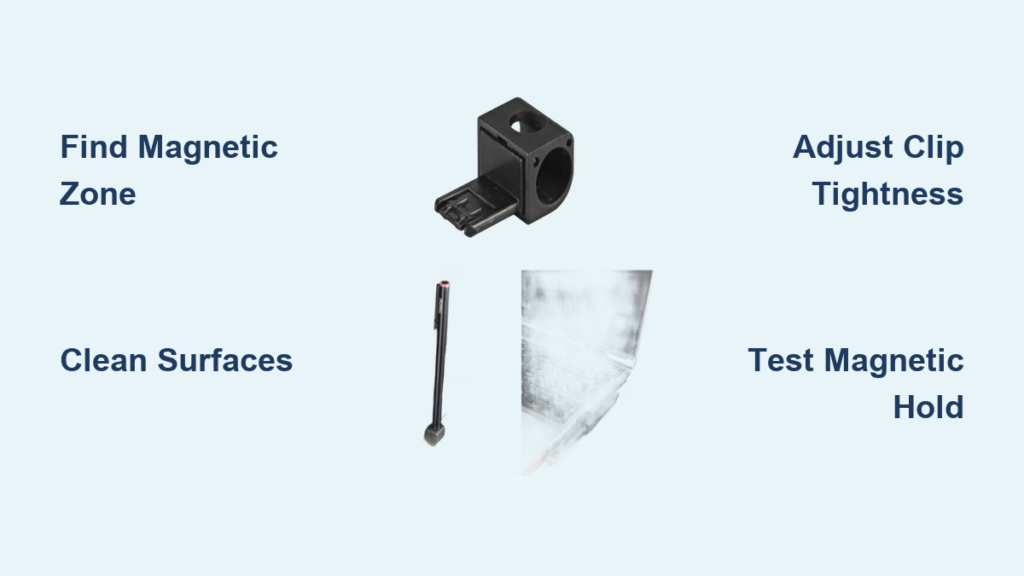
Your Lenovo pen holder keeps your active pen secure and accessible throughout your workday. Whether you’re using a Yoga laptop, ThinkPad tablet, or Lenovo pen display, the magnetic holder ensures your pen never rolls off your desk or gets misplaced between meetings. This guide walks through proper installation, daily usage, and troubleshooting for all Lenovo pen holder models—giving you the confidence to maximize your digital pen experience from the very first touch.
Most professionals waste valuable time searching for their stylus when inspiration strikes, but with the right Lenovo pen holder setup, your pen will always be within immediate reach. You’ll learn exactly where to position your holder for optimal accessibility, how to avoid common installation mistakes that damage devices, and troubleshooting techniques for weak magnetic holds. By the end of this guide, you’ll have mastered one-handed pen retrieval that saves you 5-10 seconds each time you grab your stylus—adding up to hours of productivity each year.
Find Your Lenovo Pen Holder’s Perfect Placement Location
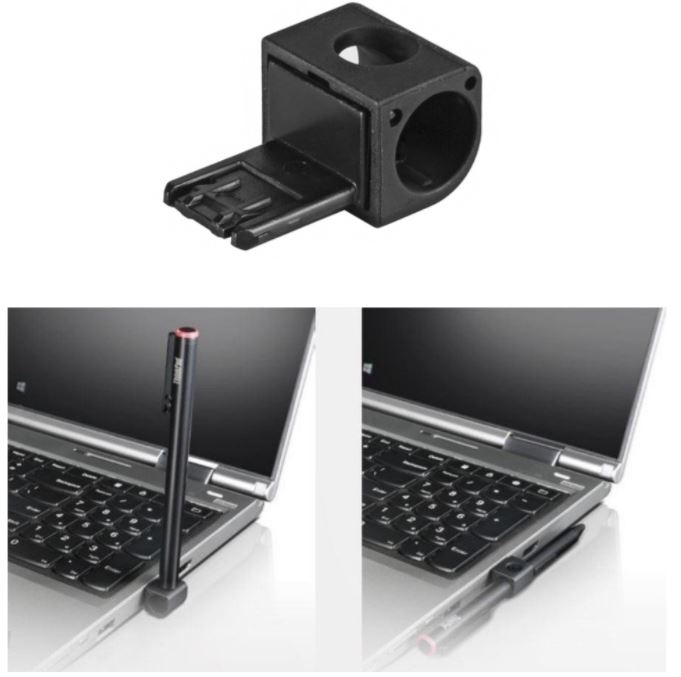
Locate the magnetic zone on your Lenovo device—usually marked by a small pen icon or circular indentation. Yoga laptops position this zone along the right side of the palm rest, while ThinkPad tablets feature multiple magnet points around the frame. Avoid placing the holder near speakers or USB ports where magnetic interference could affect performance. Test different positions by hovering your pen near the device surface; the strongest magnetic pull indicates the ideal holder placement. Most users prefer the right side for right-handed use, but left-handed users can flip the device orientation in Windows settings with a quick adjustment.
Measure Your Device Thickness Before Attaching
Clip-style holders accommodate devices between 2-8mm thick. Use a ruler to measure your screen bezel or tablet edge thickness. Too tight clips can damage screens—if your measurement exceeds 6mm, consider magnetic or docking options instead. When attaching clip-style holders, open the clip’s jaws by squeezing the release mechanism, then position the holder over a non-display area—preferably the side bezel or bottom frame. Slowly close the clip until you feel resistance, then stop. The holder should grip firmly without bowing the screen or leaving marks. Rotate the pen cradle to your preferred angle—most users angle it 15-30 degrees toward the keyboard for quick access.
Secure Magnetic Holders Without Damaging Your Device
Clean the chosen area with isopropyl alcohol to remove oils and dust before applying magnetic holders. Peel the protective backing from the magnetic holder’s adhesive side—skip this step if your device has built-in magnets. Press firmly for 30 seconds, ensuring full contact with the device surface. Wait 24 hours before attaching your pen to allow the adhesive to cure completely. Test the bond by gently tugging the holder; if it shifts, reposition immediately before the adhesive sets permanently. Never attempt to reposition a magnetic holder after 24 hours—this will almost certainly damage your device’s finish.
Master One-Handed Pen Retrieval for Maximum Productivity
Practice the two-finger technique: index finger on the pen tip, thumb on the barrel. This prevents dropping pens when rushing between applications. Avoid yanking pens straight up—instead, slide sideways to break the magnetic connection smoothly. Develop muscle memory by docking and retrieving your pen 10-15 times during initial setup. Most users master the motion within a day, reducing fumbling during presentations and meetings. For left-handed users, reverse the technique with thumb on the tip and index finger on the barrel for equally smooth operation.
Proper Travel Techniques for Your Lenovo Pen Setup
Before closing your laptop, remove the pen from magnetic holders to prevent screen pressure marks. Clip-style holders can stay attached, but rotate the cradle flat against the device. Never pack pens in checked luggage—magnetic holders can trigger security scanners at airports. For frequent travelers, consider a portable pen case instead of relying on your device’s holder during transit. Magnetic holders lose effectiveness in airplane seat-back trays due to metal interference from seat frames, making portable cases essential for business travelers.
Troubleshoot Weak Magnetic Hold in Minutes
Clean both the holder and device surface with a microfiber cloth. Oil buildup from hands reduces magnetic strength significantly. If cleaning doesn’t help, check for magnetic interference—remove nearby wireless chargers or metal desk accessories that might be disrupting the magnetic field. Some Lenovo models allow magnetic strength adjustment through BIOS settings. Access BIOS by pressing F1 during startup, then navigate to Configuration > Pen Settings > Magnetic Holder Strength. Increase by 10-20% increments, testing hold strength after each change until you achieve optimal performance.
Fix Clip Slippage Without Damaging Your Device
Tighten the clip’s adjustment screw clockwise in quarter-turn increments. If the clip still slides, add thin rubber pads to increase grip friction. Avoid using tape—adhesive residue attracts dust and creates permanent marks on your device. For permanent installations, apply a small dot of removable mounting putty between the clip and device. This provides extra grip without damaging surfaces when removed. Never force a clip tighter than hand-tight—this can strip plastic threads and permanently damage your holder.
Stabilize Wobbly Docking Stations Immediately
Add weight to lightweight docks by filling the base compartment with coins or small washers. Most Lenovo docking stations include a removable bottom plate for this purpose. Maximum safe weight is 200g—exceeding this can crack plastic bases over time. If your dock wobbles on uneven surfaces, adjust the rubber feet by turning them clockwise to extend. Each foot should make firm contact without lifting others off the desk. For glass desks, apply non-slip desk pads under the docking station to prevent sliding during vigorous pen use.
Unlock Advanced Lenovo Pen Holder Features
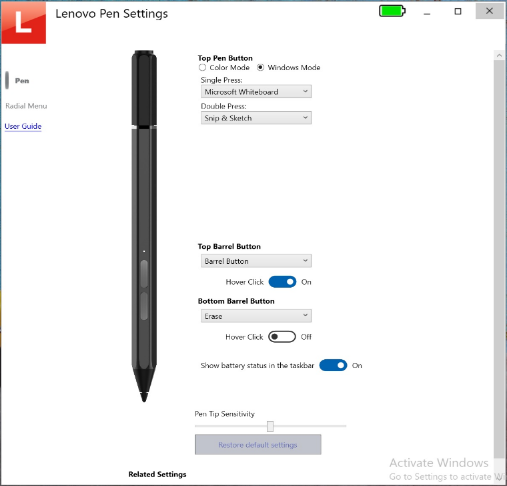
Premium Lenovo docks include LED strips that indicate pen battery status. Solid green means fully charged, pulsing amber indicates active charging, and red flashes signal low battery. Disable LEDs during presentations by holding the dock’s power button for 3 seconds to prevent distracting light patterns. Some magnetic holders can store two pens simultaneously—ideal for users switching between stylus types. Position the primary pen toward the rear magnet, secondary pen forward. This works best with identical pen models—mixed models may interfere with each other’s magnetic fields and cause accidental detachment.
Create Custom Mounting Solutions for Unique Workspaces
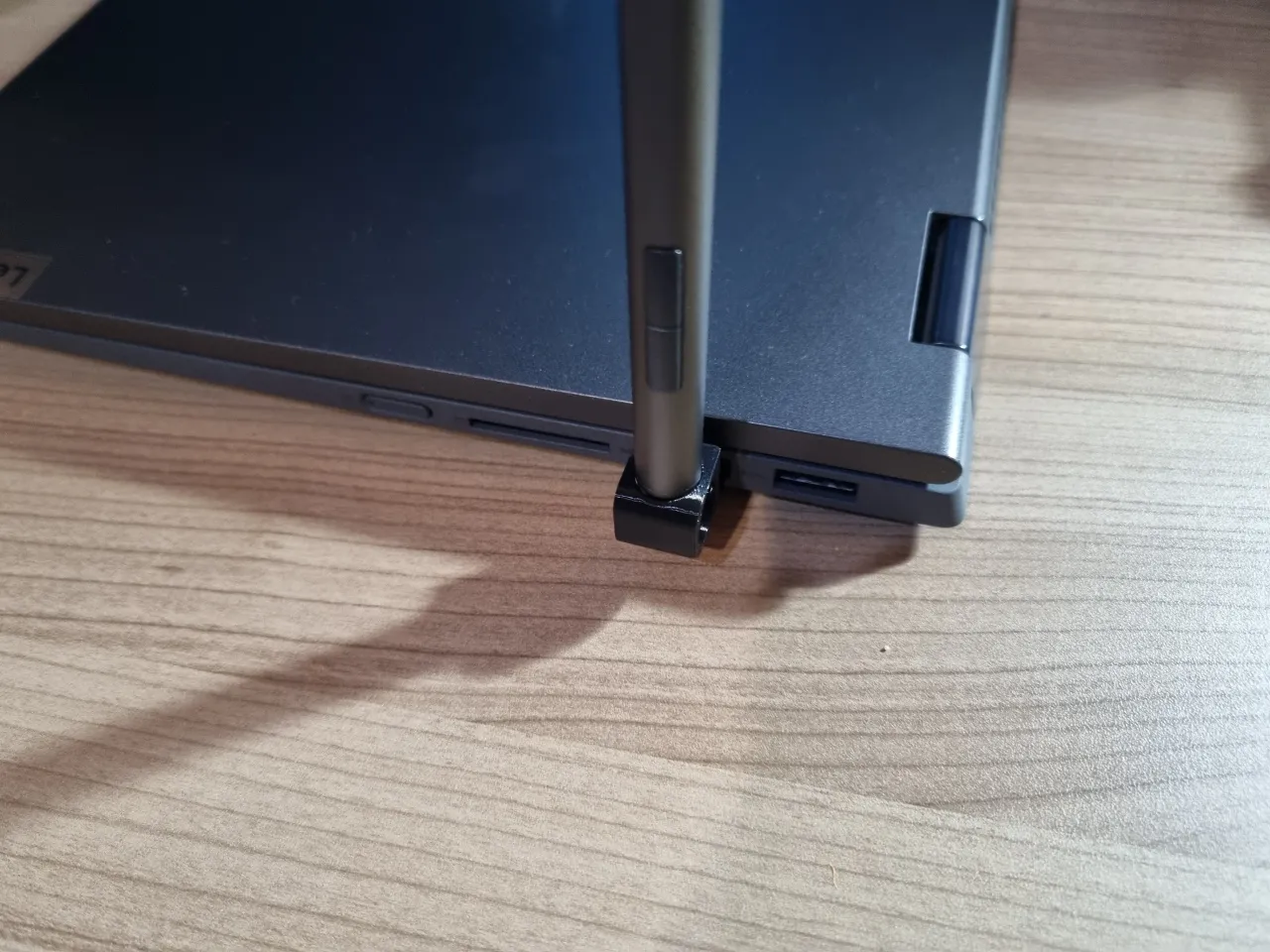
3D print custom brackets to mount holders under desk edges or on monitor arms. Lenovo provides STL files for basic adapters on their support website. Use PETG filament for durability—PLA warps in warm office environments. For standing desks, create angled mounts that position the pen at waist height for easy access while standing. Always test custom mounts with a single pen first—over-engineered solutions can create unstable pen retrieval angles that lead to dropped styluses.
Maintain Your Lenovo Pen Holder for Long-Term Reliability
Wipe the holder with 70% isopropyl alcohol weekly to prevent pen grip residue buildup. Pay special attention to magnetic contact points—metal shavings from office environments can scratch pen surfaces. Use compressed air to clear debris from clip mechanisms, especially if you work in environments with paper dust or fabric fibers. Remove holders from devices before long-term storage to prevent adhesive degradation. Store magnetic holders away from credit cards and hard drives—strong magnets can corrupt magnetic stripes and data. Ideal storage temperature is 60-75°F to maintain adhesive and plastic flexibility during seasonal changes.
Recognize When to Replace Your Pen Holder
Check for visible wear on magnetic surfaces—pitting or scratches can reduce holding power by up to 40%. If your pen falls off more than twice daily despite proper cleaning and adjustment, it’s time for replacement. For clip-style holders, inspect the adjustment screw mechanism; if it spins freely without tightening, the internal threads have stripped. Docking stations should be replaced if the base develops cracks or if the pen no longer charges properly when docked. Never attempt to repair damaged holders—Lenovo offers affordable replacement options that maintain your device’s warranty coverage.
Your Lenovo pen holder transforms from a simple accessory into a productivity powerhouse when set up correctly. By choosing the right holder type for your workspace and following these precise usage guidelines, you’ll save valuable seconds each time you reach for your stylus—adding up to hours of reclaimed productivity annually. The key is proper placement that matches your natural hand movements, regular maintenance to prevent common issues, and understanding your specific model’s advanced features. Keep this guide bookmarked for quick reference whenever you need to optimize your pen holder setup, and you’ll never waste another moment searching for your stylus during critical creative moments.


